Templates
On to some core functionalities in CertHub, our wonderful Templates.
Templates in CertHub provide a placeholder for real documents. Different documents/records can be created on the basis of one template.
Here is the cool thing, Templates can have
- Placeholders (or references) that get filled when you create a document
- Preview view on the placeholders without actually creating a document (you can even change the preview context, just sleect another product)
- Input fields to create forms, us this to create a bunch of records (hopefully no complaints 🤞)
Creating Templates
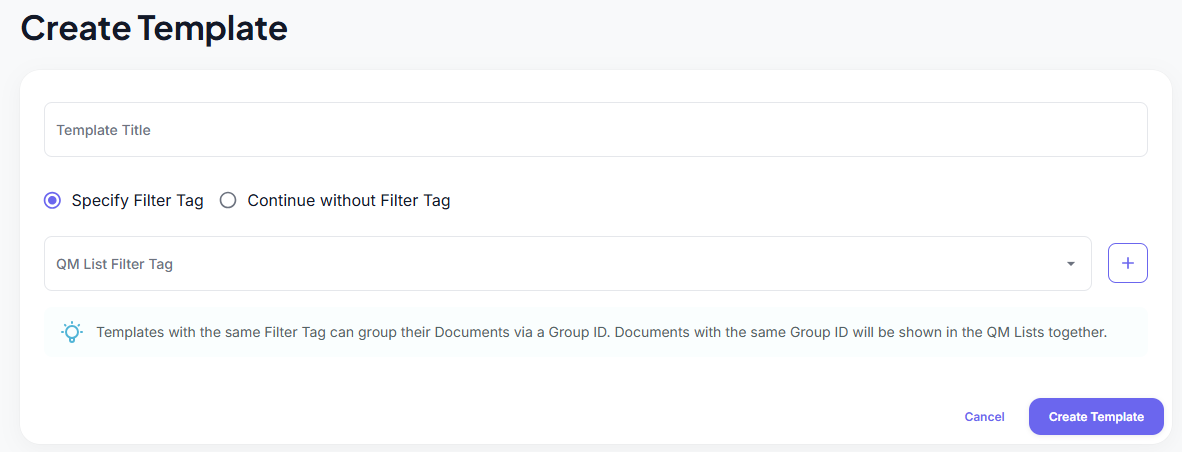
When creating a new Template, you'll be asked to provide:
- A Tempalte Title (required)
- A Filter Tag (optional, have a look at Advanced QM Lists)
Managing Templates
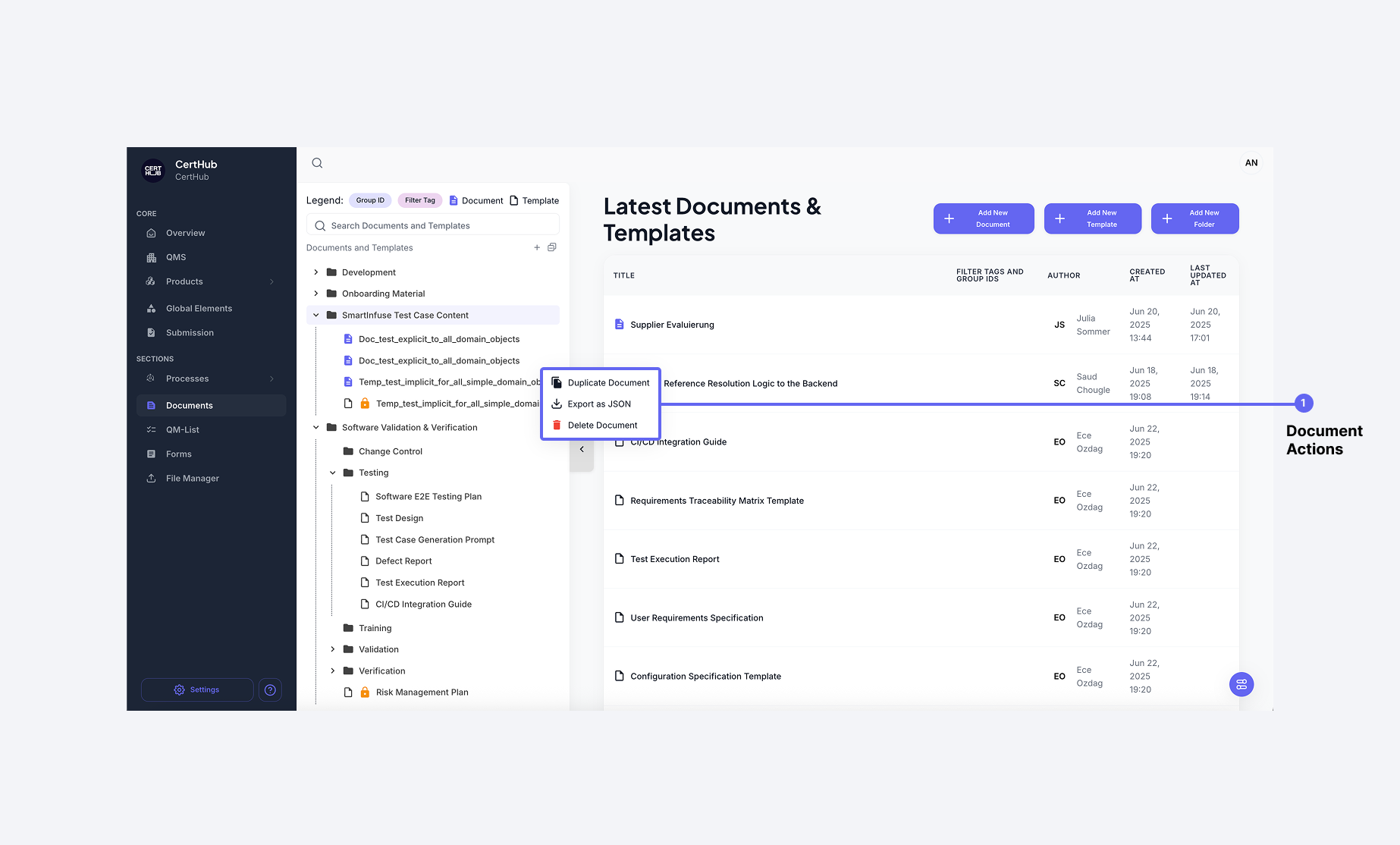
- Viewing Templates: All Templates are listed in the folder tree.
- Filtering for Templates: You can filter the folder tree for Templates only.
- Deleting Templates: Non-approved tempaltes can be deleted through hovering over the tempalte and clicking on the menu.
- Exporting Templates: Selected Template can be exported as .json.
- Importing Templates: Previously exported Templates can be re-imported when needed (still .json).
- Filtering Templates: Use the search bar at the top to search for Templates by name. Only Templates that match the specified filter will be displayed.
- Creating a New Templates: Click the "+" button at the top or next to any folder to add a new Template.
Placeholder/Reference Functionality
So what are these ominous yet powerful placeholders/references we keep talking about?
Templates can contain placeholders/references. As you know by now, we have a dedicated area for Processes (The QM World) and we have a dedicated area for our Product(s). In templates, you can re-use the data from the QM or Product World. You can reuse this data, by setting references to those Worlds.
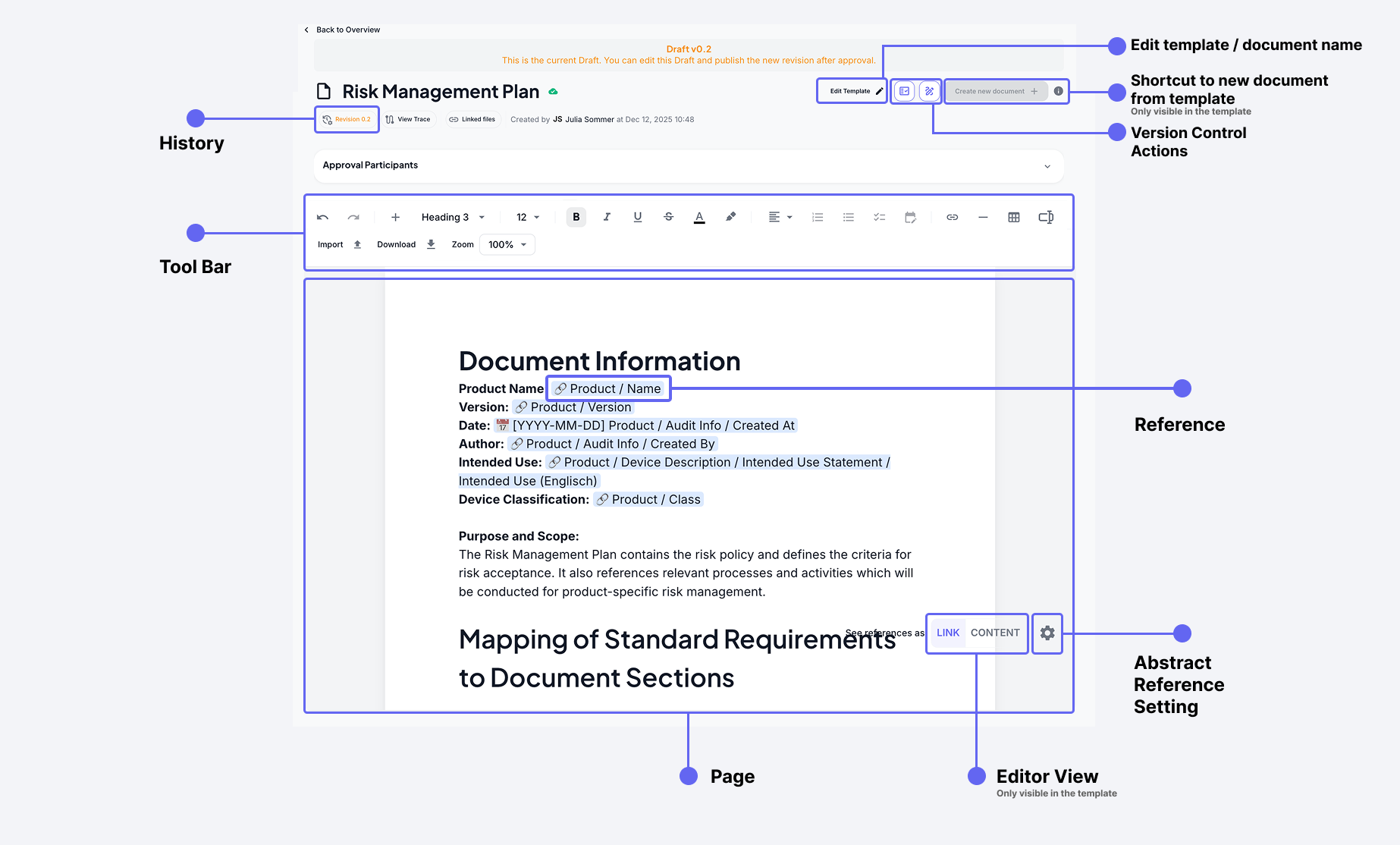
In the image above, you can see Text, that is marked in blue. This is what our references look like, in this case, you can see references to the Product World (because the start with Product / ...). You can add the reference only in templates, as templates don't hold actual data. As explained earlier, tempaltes only hold placeholders. If you want to see real data, you will have to create a document.
But let's stay focused on the templates for a moment longer. You can preview what the references will be substituted with, by changing the dataset that is loaded into the template, this means, you can change the context of the template.
You can do this by clicking on the Abstract Reference Setting. In there you can choose SOPs, Work Instructions or a Product and with this, you also choose the respective dataset that will be displayed in the preview.
For detailed instructions on adding references and different types of references, see Text Editor.
Previewing the Template
In the Editor View, you can choose between:
-
LINK View
- Shows the reference paths instead of actual content
- Displays references in format like:
Sterilisator 20A / NameProduct / Risk ClassSOP / Abbreviation
-
CONTENT View
- Displays the resolved content instead of reference paths as a preview
- Examples:
- Instead of
Sterilisator 20A / Name, shows actual content, i.e. "Sterilisator 20A" - Instead of
Sterilisator 20A / Risk Class, shows actual content, i.e. "Class IIb"
- Instead of
- Instead of
SOP / Abbreviation, shows actual content, i.e. "SOP-DC-01"
Changing the Preview Context
You can change the dataset that is loaded in the Abstract Reference Settings (⚙️) next to the Editor View. The content will be displayed in real-time.
Template Version Control
For this you have the Version Control Action Buttons The Version Control system allows you to manage both Drafts (Revisions) and Approved Versions of your templates. For this you have the Version Control Action Buttons that allow you to Release Minor or Approve Draft whihc essentially corresponds to Revisions and Versions.
Understanding Revisions vs Versions
Like most objects in the CertHub, you can of course version Templates for a clean Audit Trail. Because it all works the same, have a look at the general Versoining Concept inside CertHub. We promise, it's pretty straight forward.
Create a Template from a specific Revision or Version
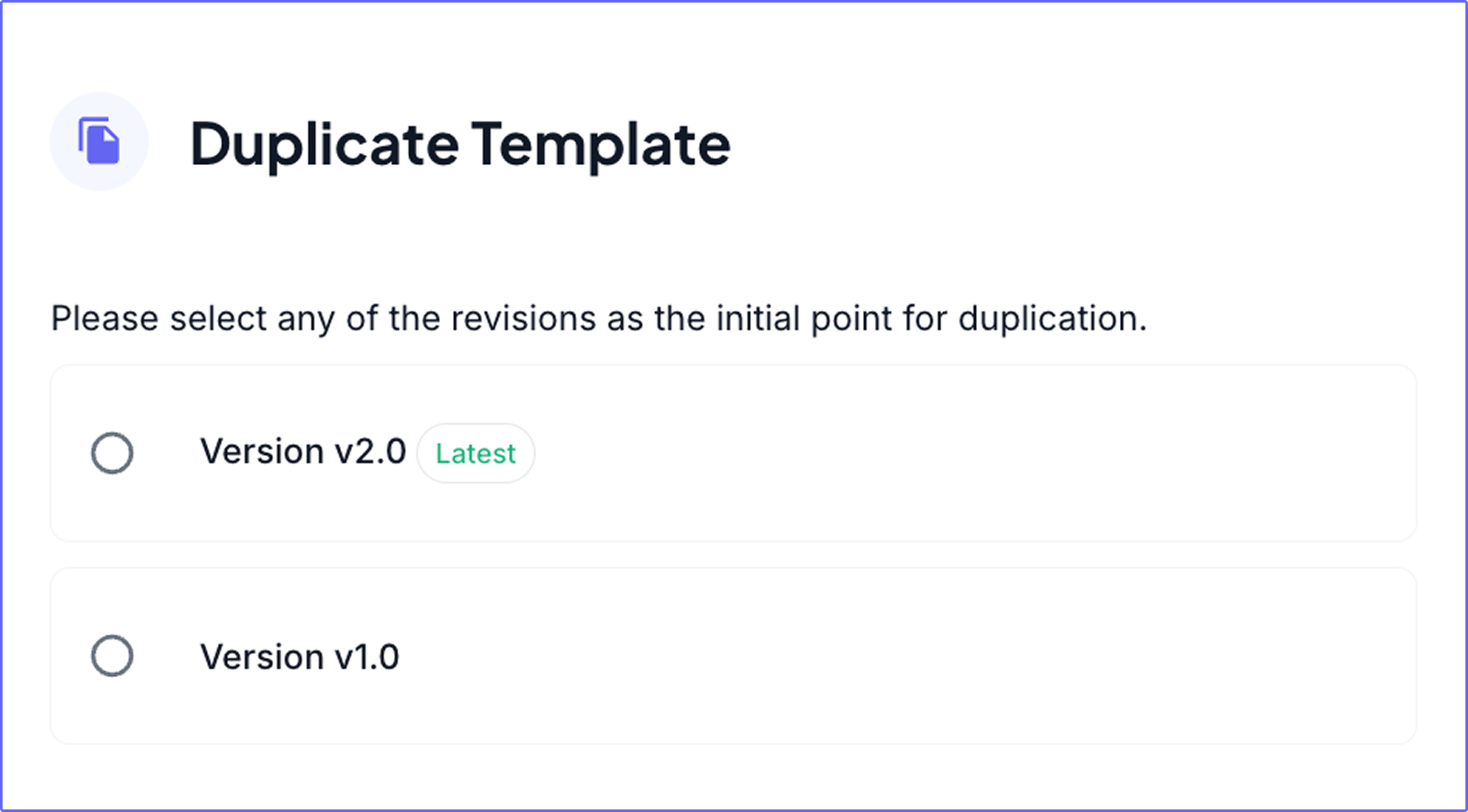
However, one thing is unique to Templates and Documents: The ability to create new documents or templates from any historical version.
When you click on the Duplicate Template option, you can select one of the available revisions or versions for that Template to create a new Template.
Using Templates
You can generate documents from approved Templates. Because tempaltes are reusable by nature, you can select how you want to use the template, specifically, whihc dataset should be loaded into the Template.
We split the work as follows:
- Click "Create New Document". (You)
- Choose the object (and its data) for the document. (You)
- CertHub loads the data of your selected object into the template. (CertHub)
- All references are substituted with actual data. (CertHub)
Example:
- Instead of
Sterilisator 20A / Name, the document will display "Sterilisator 20A". - Instead of
Sterilisator 20A / Risk Class, the document will display "Class IIb". - Instead of
SOP / Abbreviation, the document will display SOP-DC-01.
Sounds familiar? This is exactly what happened when previewing the template. This time around, you have commited to on configuration of objects (and you can't change it anymore).
Also, some more good news:
You can do this as often as you want, either with the same or a different context configuration!
But again, once a document is generated, its references cannot be changed, but there context can.
Handling Unresolved References
If a reference cannot be resolved (e.g., missing or unavailable data), a warning will notify you.
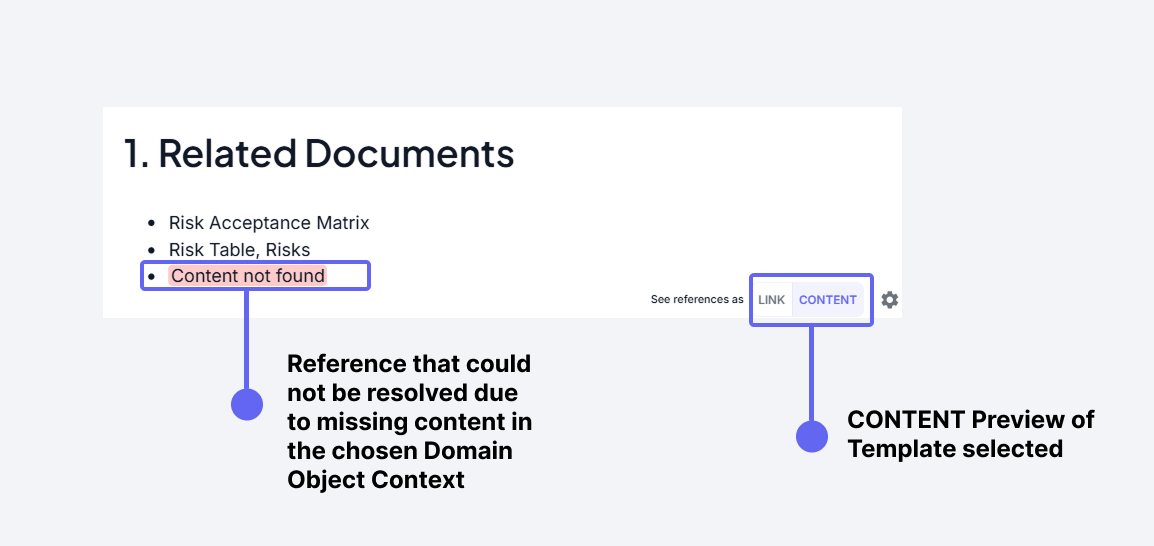 This will of course look the same for a real document and is not only available for the Template Preview
Previewing the Template in the Editor View helps identify missing or unresolved data before generating a document.
Editing Templates
For further details on how to use the text editor, please see how the TextEditor works.